
Laptop Mag Verdict
The HTC Vive Cosmos has a great pair of lenses and headphones, but the tracking and comfort leave much to be desired.
Pros
- +
Sharp, smooth display
- +
Strong audio
- +
Solid button placements on controller
- +
Wide selection of games and apps
- +
Viveport app is on point
Cons
- -
Subpar tracking
- -
Uncomfortable design
- -
Expensive
- -
Controllers are a little bulky
- -
No social features
Why you can trust Laptop Mag Our expert reviewers spend hours testing and comparing products and services so you can choose the best for you. Find out more about how we test.
As the years pass, virtual reality gets better and better, but for the HTC Vive Cosmos, that doesn't seem to be the case.
Don't get me wrong, for $699, you get great features like a sharp display, great audio and a solid app featuring a ton of games. However, for the hefty price, you surprisingly have to suffer with an uncomfortable design, poor tracking and a pair of bulky controllers, which seems unreasonable.
It's difficult to recommend this headset on its own, but if you want to buy the HTC Vive Cosmos, it can be good as long as you're willing to shell out some money for base stations ($135) to improve the tracking.
- Check out the best VR-ready laptops and best gaming laptops
- See the best PC games to play with the HTC Vive Cosmos
HTC Vive Cosmos price and availability
If you're looking to pick up the HTC Vive Cosmos, it's going to cost you a hefty $699, which is $300 more expensive than the competing Oculus Rift S ($399). And when you consider the cost of current-gen consoles — like the Xbox One X ($399), PlayStation 4 Pro ($399) and Nintendo Switch ($299) — it's kind of ridiculous to throw around that kind of money for gaming hardware. At the very least, it's not as expensive as the Valve Index ($999).
HTC Vive Cosmos design
It's like the HTC Vive Cosmos jumped straight out of a sci-fi movie, with its deep blue color highlighting the hollow triangles all over the faceplate. This is a stark contrast from the original HTC Vive, which took the basic matte-black approach.
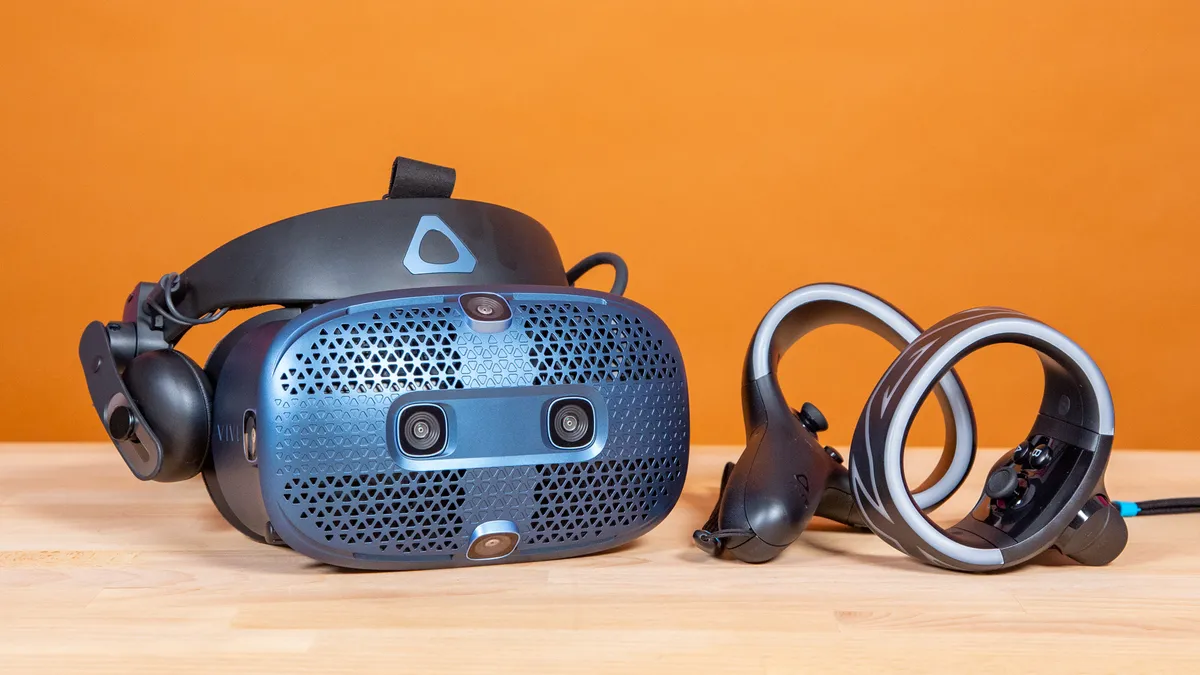
The face of the HTC Vive Cosmos is riddled with the aforementioned hollow triangles surrounding the four cameras on the panel. Around the goggles are two additional cameras. The power button, accompanied by an LED indicator, sits on the left. You'll find the interpupillary distance (IPD) knob, which can adjust the focus of the lenses, on the right.
In the interior of the HTC Vive Cosmos, there are two giant lenses, with a sensor sitting just above and between them. Surrounding the interior is some rubber to cushion the nose, as well as giant foam padding for the face. The HTC Vive Cosmos sports a giant halo headband strapped with two small earphones and a 16.4-foot cable that leads to a DisplayPort.

My version of the HTC Vive Cosmos did not come with a Mini DisplayPort adapter, but instead came with a Link Box, which requires you to connect the DisplayPort to a box that outputs USB 3.0 port and DisplayPort to your computer. It also has to be powered, so you have to find an outlet for that as well. If you want to slim down your setup, you can buy a converter, which offers the same ports but in a much smaller form factor. However, it seems like HTC has updated its HTC Vive Cosmos to automatically come with a Mini DisplayPort adapter as well as a converter, which is great.
At 1.5 pounds and 7.5 x 4.6 x 5.6 inches, the HTC Vive Cosmos is a little heavier than the Oculus Rift S (1.2 pounds, 10.8 x 3.7 x 5.2 inches), but it does have a slightly smaller footprint.
HTC Vive Cosmos setup
Apart from requiring me to connect a ton of wires to a small box, the HTC Vive Cosmos was easy to set up.

After that's all connected, go to HTC's website to download the Vive Software app to set up your Vive. Then, head to the Viveport website to download the Viveport app to get access to HTC's personal game library store, which took up roughly 8GB of data on my computer.
When all the software is updated, connect your DisplayPort to the Link Box and make sure all of the output cables are going to the right place; then, power on the Link Box. The Cosmos will also come with four AA batteries that you'll need to slot into the controller (make sure you place the batteries on top of the ribbon, so you can easily pull them out). But before you dive into virtual reality, keep in mind that the recommended play area is 6 feet, 6 inches x 5 feet. However, you can customize the play area to accommodate your needs.
Once you're all done with the prep work, pop the goggles on and let those 2880 x 1700 lenses hit you with that smooth 90-Hz refresh rate. For context, the Oculus Rift S' lenses sport only 2560 x 1440 lenses at a 80-Hz refresh rate. The app will transition you to a transparent view in order for you to set up your play area. The Vive app will make you touch the floor with a controller to determine your height and outline your play area with a brush to see how much room you have. If you get close to any of the barriers you've drawn, a colored outline will appear (you can customize the color in the Viveport app).
Unfortunately, the tutorials for the HTC Vive Cosmos aren't as whimsical as those for the Oculus Rift S, but they're short and informative nonetheless. Once you're all set up, the headset will direct you to Origin, which is your own personal home/hub area. The tutorials will guide you on how to use the controller and even give you some neat gadgets to mess with, like a drawing tool as well as an RC car.
HTC Vive Cosmos interface
When you're done listening to the nice lady tell you what you can do in VR, you can enjoy the comfort of your own little area, called Origin. Unfortunately, it's not as immersive as Oculus Home, because you can't really customize the space to your liking apart from the weather and backgrounds.

Navigating the menus of the HTC Vive Cosmos is simple, and that's because there's not much there. There are three major tabs: The left one takes you back to Origin, the center is the Viveport store that shows off games from the store and your library, and the rightmost tab houses the settings. Unfortunately, you can't lay out your tabs or even access a virtual desktop like you can with the Oculus Rift S. However, the HTC Vive Cosmos shines in the settings menu.
Within this menu, you can adjust the volume of the headset (a feature not found in the Rift S), adjust the display mode of the lenses (Normal, Vivid or Night) and enable or disable the camera passthrough. You can also change the distance and height of the lenses in game to adjust to what you're playing. The boundary settings let you decide the color, transparency and camera view of, naturally, the boundaries. And, of course, you can readjust your floor height or boundaries from here as well.
HTC Vive Cosmos performance
For a VR headset that costs $300 more than the Oculus Rift S, I expected to be at least 75% more immersed in the games I was playing, but that wasn't the case at all. Whether I was gearing up as a cyberpunk ninja to slice my enemies with a katana or exploring a gorgeous open world with a grappling hook, I suffered from numerous issues thanks to the subpar tracking on the HTC Vive Cosmos.

Playing Psytec Games Ltd.'s Windlands 2 was an absolute treat, as the game satisfied my sense of adventure with its semiopen world as well as my sense of danger thanks to its rouge-like gameplay. However, playing this game while seated was an absolute nightmare. The HTC Vive Cosmos would consistently stop tracking the motion of my controllers and occasionally stop tracking on the headset.
In Sairento VR, I played while standing up and I had a much smoother experience. In "Cyber Tokyo," I had to jump, slide and wall run around armored samurais and fight them with my guns, katanas and throwing stars. The game was fun, and the Vive Cosmos reacted OK to my movements. But I would occasionally run into tracking issues, especially when I swung my sword and the controller would have no idea where my hand actually was (it was in front of me).
I also took a tour into Arizona Sunshine, and wow, the controller tracking was especially bad in this game. Every time I went to reload, my arms would just get trapped in the air for a split second before the system registered where my guns actually were. Firing them and aiming felt fine, but if I moved sporadically, the headset didn't know what to do with itself.
HTC Vive Cosmos games and apps library
The HTC Vive Cosmos has the same problem that all current VR headsets have, which is that there aren't enough AAA VR games available to widen the selection of games, but somehow, the Cosmos has it worse. There are no exclusive games for the HTC Vive Cosmos, which is ridiculous considering headsets like the Oculus Rift S have access to games like Vader Immortal, Marvel Powers United VR and Insomniac Games' Stormland.
Despite that, Vive offers a paid monthly service called Viveport Infinity that'll give you access to hundreds of VR games as well as exclusive offers and discounts, all for $12.99 per month or $8.99 per month if you buy an annual plan. This is very reminiscent of the Xbox vs. PlayStation experience, where Oculus has the games but Vive has this cool, Game Pass-esque service. So, if you're down to try a ton of VR games without spending a ton of money, then Vive might be for you.
There are still some superfun games on the service, like Creed: Rise to Glory, which is one of the better boxing VR games around; Arizona Sunshine, an epic adventure zombie shooter; and even Five Nights at Freddy's VR. If you're unacquainted and have an itch for horror, that's your game. There are also some great games that you'll have to pay for outside of the service, like Gorn and Superhot VR.
There are also quite a few apps on the Viveport store, like Firefox Reality, which is just the Firefox web browser in VR, and Tilt Brush, which is a 3D painting space created by Google. Vive also offers a selection of original series to watch, such as theBlu: Whale Encounter, which transports you deep under the sea to a sunken ship, where you can see the true-to-life scale of a giant whale in your face.
Educational apps? Vive's got that too, with apps like The Night Cafe, which is a VR tribute to Vincent van Gogh that shows you his painting from a different perspective, and Circadian Rhythm, which gives you a virtual look inside of a cell, from the membrane to the nucleus; this won the 2017 Nobel Prize in Physiology or Medicine.
HTC Vive Cosmos comfort
That 4.8-ounce jump from the Oculus Rift S to the HTC Vive Cosmos was a bigger difference than I anticipated. The HTC Vive Cosmos is incredibly front-heavy, and it was hard to move my head left or right without feeling the entire weight of the headset move with me. It wasn't just the weight, either; it was the thick, halo headband that made it feel like I was putting a cheese grater against my head; it even left a similar imprint.

There are a few things you have to worry about to get a "comfortable" fit with the HTC Vive Cosmos. First, there's the adjustment dial on the back of the headband for adjusting the tightness; then, there's the top strap for adjusting the depth of your skull and the IPD knob for fixing the focus of the lenses. It's incredibly difficult to find the right position to keep your eyes dead center on the lenses, which is the only way to see everything in as sharp a focus as possible, while also keeping the headband comfortably around your head. The headband feels the most comfortable when it's not in the correct position.
However, there's one design choice that I actually like about the HTC Vive Cosmos: that the front piece can flip up and down, so you can easily fit the headset on your head but also pull the goggles up to see the real world in front of you. This is much more effective than the transparency cameras. It also made using the headset while wearing glasses a lot easier.
What the headset doesn't have is a depth-adjustment feature to move the goggles closer to or farther away from your face. You'd think that the previously mentioned feature would be a good substitute, but it doesn't exactly help keep the goggles snug against my face.
HTC Vive Cosmos controllers
The Vive Cosmos controllers are designed similarly to the Oculus Touch controllers, minus all the cool touch functionality. Each Vive Cosmos controller has a thumb stick, two face buttons, a menu button, a bumper and a trigger (for your index finger), and a grip button (where your middle finger goes). The controllers come with a lanyard so you don't fling them somewhere, and each controller weighs 7.4 ounces.

While the Vive Cosmos controllers are most certainly bulky and could stand to lose some weight, they do a few things right, starting with the button layout. The pair of face buttons and the analog stick are an optimal distance from each other, but most importantly, the menu buttons are under the analog stick as opposed to the face buttons, which prevented the bottom of my thumbs from smashing those controls accidentally.
Although I think that the controllers need a trim, I want the grip's length to stay as is. As someone with sweaty hands, I need something that I know I can hold onto without experiencing slippage. Playing games like Arizona Sunshine and Blade and Sorcery, where I had to blast zombies in the head or slice and dice my way through groups of wizards, respectively, using the controllers felt natural (when the tracking wasn't bugging out). But the grip itself could stand to be a little more ergonomic and curve with my palm, because after a while, my hands cramped up.
Another important thing to mention is that the battery panel takes up only one-fourth of the controller, and it's a snap-in instead of a magnetic piece that slides everywhere (take notes, Oculus).
HTC Vive Cosmos audio
The HTC Vive Cosmos' headphones aren't seamless integrated speakers like those on the Oculus Rift S. But they have the best design I could have hoped for, as they're relatively small but managed to cover my ears. Not only were the headphones loud, but they also actually sounded good.

Pulling my pistol and nailing three zombies in the head in quick succession in Arizona Sunshine made me feel like a badass, mostly because the gun's bassy impact sounded heavy and active. The sword swipes in Sairento VR were smooth and satisfying, too, as the sounds hit the highs and mids just right.

I even listened to some music with the headphones. Max Richter's "On the Nature of Daylight" features a ton of stringed instruments, and each one, from the high-pitched strings to the low bass, delivered enough depth through the headphones to differentiate themselves and shine.
If you're not feeling the speakers, you can actually disconnect them and detach them from the headset, so you can find your own audio solution.
HTC Vive Cosmos social
Want to easily invite your friends and chat with them over Viveport? Too bad — you can't. The only way to find and play with your friends is through each game's matchmaking mechanics, which will vary in quality. And of course, there's no way to keep track of people you meet online, so you'd better have your Discord or Skype username handy at all times.
HTC Vive Cosmos store
You can access the Viveport in either VR or desktop mode. Navigating the store in VR is an absolute nightmare. The Vive Cosmos frequently bugged out and stuttered when in the store, which made me nauseous. Then, when I would restart and come back, everything was normal but still fidgety. The layouts of the games were blocky, and it was difficult to get used to the controls. You have to hover over something to get a preview, but if you move the analog stick, it moves the whole row of games. I avoided the in-game Viveport app like the plague.
Navigating the store on the desktop was simple, and the app itself is pretty clean. The main Viveport page features a bunch of new releases as well as games popular in Infinity. It even has sections for games that work with Oculus Rift, Valve Index and Windows MR, which is unexpectedly inclusive.
A few tabs at the top divide your categories into Apps, Games, Videos, Your Library and All. If you're trying to scour all content and add some filters, you can go to the All tab and hit All Genres, which will bring you all of the results in the store; you can filter these via price, content type, genre, headset compatibility, input method, number of players, play area and even language.
Meanwhile, the individual store page for a game like Creed: Rise to Glory lists the aforementioned details as well as the system requirements for the game, the ESRB rating, a description, photos and a trailer. Overall, the Viveport app is buttoned up quite nicely; I just wouldn't open it in VR.
Something that the Vive team needs to consider is outfitting its Viveport store with a comfort rating system for each of its games, similar to what Oculus has. Right now, the only idea of comfort that you can glean from a game is its play area options: if it's played seated, standing, room-scale or all three.
HTC Vive Cosmos vs. HTC Vive Cosmos Elite
If you're trying to decide between the HTC Vive Cosmos ($699) and the HTC Vive Cosmos Elite ($899), I'd like to say go with neither and pick up the Oculus Rift S ($399). But if you're down with what HTC has to offer and you're willing to pay, you might as well go with the HTC Vive Cosmos Elite.

Even though you can buy the regular Cosmos and upgrade to the Elite faceplate later for $200, you won't get the two HTC base stations and new Vive controllers if you do that. And since the HTC Vive Cosmos has poor tracking to begin with, the best way to mitigate that is to go with the version designed to offer better tracking, the HTC Vive Cosmos Elite.
Bottom line
Know what you're getting into. With the HTC Vive Cosmos, you get a sharp display, great audio and a good app to go along with those things, but you have to deal with subpar tracking, an uncomfortable headband and a pair of bulky controllers, all for the high price of $699.
Or you can save yourself some trouble and just get the Oculus Rift S, which is just $399 and offers a comfortable design and great tracking. And while its controllers are not very ergonomic either, they're not as bulky.
The HTC Vive Cosmos has a long way to go to be a good VR headset, but if you're going to buy it, get it with some base stations.

