
Laptop Mag Verdict
A gorgeous display, sturdy aluminum chassis, and excellent speakers can’t save this Lenovo business laptop from a poor price-to-performance ratio and mediocre battery life.
Reasons to buy
- +
Bright and vivid OLED display
- +
Sturdy aluminum chassis
- +
Haptic touchpad feels great
- +
Punchy speaker system
Reasons to avoid
- -
Poor price-to-performance ratio
- -
Average battery life
- -
Light on ports
Why you can trust Laptop Mag Our expert reviewers spend hours testing and comparing products and services so you can choose the best for you. Find out more about how we test.
Lenovo is no stranger to crafting an excellent business laptop, and we’ve seen the company knock it out of the park before. But is that the case for the Lenovo ThinkPad X9-14 Gen 1 Aura Edition?
Price to performance is never a strong suit for business laptops, but even though the ThinkPad X9-14 costs $1,459 for nothing more than an Ultra 5 chip, it doesn’t offer the battery life to make up for it.
I did fall in love with its stunning OLED display and sturdy aluminum chassis, and Lenovo’s haptic touchpad is shockingly great. The ThinkPad X9-14 won’t make it on our best business laptops page, but there’s still plenty it does well, so keep reading to see if it’s right for you.
Lenovo ThinkPad X9-14 Gen 1 Aura Edition: Specs and benchmarks
Price: |
$1,239 (starting), $1,459 (as reviewed) |
CPU: |
Intel Core Ultra 5 226V |
GPU: |
Intel Arc 130V (16GB) |
RAM: |
16GB |
Storage: |
512GB SSD |
Display: |
14-inch, 2,880 x 1,800p, OLED, touchscreen, 60Hz |
Battery (HH:MM): |
10:09 |
Dimensions: |
12.28 x 8.35 x 0.51 inches |
Weight: |
3 pounds |
Click to view full benchmark test results
| Header Cell - Column 0 | Lenovo ThinkPad X9-14 Gen 1 Aura Edition |
|---|---|
Geekbench 6 (Higher is better) |
10,049 |
Handbrake conversion (Lower is better) |
7:59 |
25GB File Copy (SSD speed) |
1,396 MBps |
Heat (Degrees Fahrenheit) |
90.5 |
Battery life (Higher is better) |
10:09 |
Display brightness (Higher is better) |
443 |
sRGB color gamut (Higher is better) |
122% |
DCI-P3 color gamut (Higher is better) |
86% |
Color accuracy (Lower is better) |
0.29 |
Sid Meier's Civ VI: Gathering Storm (1080p) |
56 fps |
Lenovo ThinkPad X9-14 Gen 1 Aura Edition: Price and configurations
Our model of the Lenovo ThinkPad X9-14 Aura Edition is built with an Intel Core Ultra 5 226V processor, Intel Arc 130V integrated graphics with 8GB of VRAM, 16GB of RAM, 512GB of SSD storage, and a 14-inch 2880 x 1800, 120Hz OLED touchscreen. It’s available for $1,459 at Lenovo.
The base model costs $1,239 at Lenovo, downgrading to 256GB of SSD storage and bringing the OLED touchscreen to 1920 x 1200. The most expensive model is $2,042 at Lenovo and features an Intel Core Ultra 7 268V processor, Intel Arc 140V integrated graphics, 32GB of RAM, 1TB of SSD storage, and a 14-inch 2880 x 1800, 120Hz OLED touchscreen.
It’s no secret that business laptops are more expensive than your average machine, but the ThinkPad X9-14 is above and beyond what most people would want to spend on something with an Ultra 5 processor. If you’re on the lookout for something more affordable, check out our best laptops.
Lenovo ThinkPad X9-14 Gen 1 Aura Edition: Design

I’ve never tested a laptop so thin that its ports feature their own dedicated blocks, although that’s moreso a result of the ThinkPad X9-14’s rounded sides, which give it a lovable sleekness. While some might find those aforementioned port blocks obnoxious, it makes the location of each slot easily identifiable without having to turn your laptop to see them.
Its dark gray aluminum chassis feels firm, with the lid featuring nothing more than the iconic ThinkPad logo at the bottom right, and a dot above the “i” glowing when the laptop is on. The bottom of the lid also features a notch where the webcam is.
Lifting the lid reveals a minimalist deck with another ThinkPad logo at the bottom right. Its wide touchpad provides plenty of space to scroll but enough room for your palms to rest.
The ThinkPad X9-14 is only 3 pounds and measures 12.28 x 8.35 x 0.51 inches, which makes it by far the thinnest among its competitors.
Here's how it compares:
- Acer TravelMate P6 14 — 12.3 x 8.9 x 0.8 inches, 2.6 pounds
- MSI Prestige 13 AI+ Evo — 11.77 x 8.27 x 0.67 inches, 2.13 pounds
- MSI Prestige A16 AI+ — 14.09 x 10.17 x 0.66 inches, 4.44 pounds
Lenovo ThinkPad X9-14 Gen 1 Aura Edition: Ports


As mentioned in the previous section, the ThinkPad X9-14’s ports are blocked out, which makes it easy to identify their location. Unfortunately, there aren’t many ports.
- 2 x Thunderbolt 4 ports
- 1 x HDMI 2.1 port
- 1 x headphone/mic jack
Its two Thunderbolt 4 ports are a necessity if you want to expand your port selection. You can check out our best USB Type-C hub or best laptop docking station to add any port you might need.
Lenovo ThinkPad X9-14 Gen 1 Aura Edition: Battery life
Business laptops need long-lasting battery life, and that’s not debatable. While some are tethered to an outlet all day, business professionals often find themselves on the move, so you want to ensure your machine won’t abruptly die on you.
On the Laptop Mag battery life test, which involves continuous web surfing over Wi-Fi at 150 nits, the ThinkPad X9-14 lasts 10 hours and 9 minutes before running out of juice. That would’ve been great years ago, but power efficiency reached whole new levels in recent years, and now 10 hours is notably average.
Stronger machines typically require more juice, thus resulting in shorter longevity. However, the ThinkPad X9-14 utilizes an Intel Core Ultra 5 processor, yet yields only a little over 10 hours of battery life. All its competitors lasted longer, with the best being the MSI Prestige 13 AI+ Evo, coming in at over 14 hours.
Here's a look at how the Lenovo ThinkPad X9-14 Gen 1 Aura Edition's result stacks up:
Click to view chart data in table format
| Row 0 - Cell 0 | Lenovo ThinkPad X9-14 Gen 1 Aura Edition |
Acer TravelMate P6 14 |
MSI Prestige 13 AI+ Evo |
MSI Prestige A16 AI+ A3HMG |
Battery life - Web Surfing (Higher is better, HH.MM) |
10.09 |
13.03 |
14.27 |
11.15 |
Lenovo ThinkPad X9-14 Gen 1 Aura Edition: Security and durability
As mentioned in the design section, the ThinkPad X9-14 feels sturdy. To illustrate just how durable it is, it received MIL-STD-810H certification, meaning it underwent tests involving extreme conditions involving temperature, shock, pressure, vibration, and more.
It also features multilevel security with ThinkShield, which is what Lenovo calls its comprehensive security solution across hardware and software, and it includes a dTPM security chip, facial recognition login, Intel Threat Detection, a webcam privacy e-shutter (by pressing F9), and a fingerprint reader in the power button.
Lenovo ThinkPad X9-14 Gen 1 Aura Edition: Display

Built with a 14-inch, 2880 x 1800 OLED touchscreen with a glossy panel at 120Hz refresh rate, the ThinkPad X9-14’s display is not only great in its specs but performed excellently in our tests.
I watched the trailer for Lilo and Stitch’s live-action remake, and beyond the film itself looking a tad terrifying, the armada of spaceships flying through the cosmos looked stunning. The empty void of space is brought to life by the OLED panel, and every color from the blue hue of each ship’s exhausts to the neon red hulls were bold and beautiful.
OLED is phenomenal, yielding excellent color depth and blacks so inky that movies and games become deeply immersive, but they’re not perfect: The core issue of many OLED panels lies in brightness, as they’re often far dimmer than the alternatives.
But the ThinkPad X9-14 addresses this issue effortlessly, yielding an average of 443 nits of brightness. This is more than bright enough to use the laptop outdoors and in well-lit environments, although you might have trouble in direct sunlight. It also boasts 86% coverage of the DCI-P3 color gamut, which is colorful, but OLED results tend to come in lower than they are.
Here's how the Lenovo ThinkPad X9-14 Gen 1 Aura Edition’s display performed in our lab tests against its competitors:
Click to view chart data in table format.
| Row 0 - Cell 0 | Lenovo ThinkPad X9-14 Gen 1 Aura Edition |
Acer TravelMate P6 14 |
MSI Prestige 13 AI+ Evo |
MSI Prestige A16 AI+ A3HMG |
Display brightness (Higher is better) |
443 |
395 |
357 |
454 |
sRGB color gamut (Higher is better) |
122 |
122 |
202 |
162 |
DCI-P3 color gamut (Higher is better) |
86 |
87 |
143 |
115 |
Color accuracy (Lower is better) |
0.29 |
0.31 |
0.31 |
0.25 |
Lenovo ThinkPad X9-14 Gen 1 Aura Edition: Keyboard and touchpad
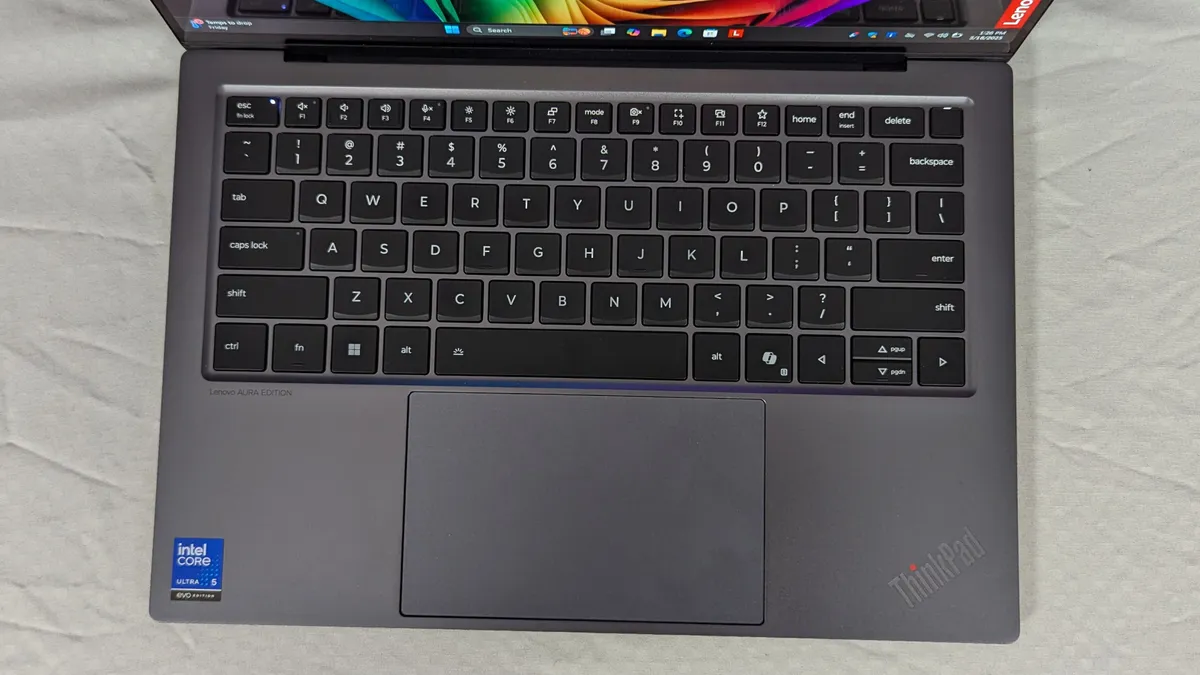
Not all keyboards are the same, but that’s often the point. Some manufacturers aren’t interested in the noisiness of mechanical switches, although I am a big fan of keyboards with physical feedback.
The ThinkPad X9-14 is one such laptop. While it types well, its design is in a weird halfway point between clicky and squishy. It’s not unsatisfying, but it also doesn’t yield that tactile bounce I associate with my favorite typing experiences.
It feels fine otherwise, as I took the 10fastfingers typing test and achieved 109 words per minute with an accuracy of 97%. It also features an interesting tilt at the bottom of each center key, including the alphabet and numbers.
If you were hoping for the classic ThinkPad pointing stick, you’ll be disappointed because it’s not present.
Continuing the trend of “this won’t be for everyone,” the ThinkPad X9-14’s 5.3 x 3.3-inch haptic touchpad is weird. It’s sensitive and provides feedback when detecting a click, and it requires barely any pressure to register. The more I used it, the further it grew on me. Its surface is fully usable, which resolves one issue I have with many trackpads. And beyond that, easy clickability makes dragging files around effortless.
Lenovo ThinkPad X9-14 Gen 1 Aura Edition: Audio
Bottom-firing speakers aren’t always a great sign, but in this case, the ThinkPad X9-14’s audio blasts through the keyboard and makes for a surprisingly full sound that gets nice and loud.
I listened to “S.N.C.” by Darkside and was immediately blown away by the powerful percussion and punchy bass. It does sound a bit sharp at points, especially during the higher pitched vocals. Beyond that, it’s more than capable of filling my room with clear sound, and you’re even likely to reduce the volume.
You’ll always be better off with a pair of the best headphones, but you won’t have an issue listening to music or watching movies with the ThinkPad X9-14.
Lenovo ThinkPad X9-14 Gen 1 Aura Edition: Performance and heat

You’re probably wondering if our model’s high price point (of nearly $1,500) would yield powerful specs, but that isn’t the reality for business laptops. The ThinkPad X9-14 is built with a Intel Core Ultra 5 226V, 16GB of RAM, and 512GB of SSD storage.
The ThinkPad X9-14 offers solid performance by all means, but if the best of the best is what you’re looking for, you’ll want to invest in the more powerful model (which brings the laptop over $2,000), or you could look elsewhere and get far better specs for the same price.
On the Geekbench 6 performance benchmark, it achieved a multi-core score of 10,049. I had no slowdowns throughout my web browsing after opening several demanding tabs at once. We measured how quickly it converts a 4K video to 1080p through the HandBrake app, and it took 7 minutes and 59 seconds.
These are solid scores, but again, you can get far better performance in a cheaper machine if you’re not in the market for a business laptop. For example, I recently reviewed the Asus Zenbook 14 UX3405CA for $1,399 and it’s built with an Intel Core Ultra 9 285H processor, 32GB of RAM, and 1TB of SSD storage. Its Geekbench 6 score of 15,538 and Handbrake conversion speed of 6 minutes make it clear how much faster it is for the same price. However, it doesn’t offer the same security features.
Here's how the Lenovo ThinkPad X9-14 Gen 1 Aura Edition performed in our real-world and lab tests compared to its competitors:
Click to view chart data in table format.
| Row 0 - Cell 0 | Lenovo ThinkPad X9-14 Gen 1 Aura Edition |
Acer TravelMate P6 14 |
MSI Prestige 13 AI+ Evo |
MSI Prestige A16 AI+ A3HMG |
Geekbench 6 (Higher is better) |
10,049 |
9,121 |
10,392 |
14,413 |
Handbrake conversion (Lower is better, MM.SS) |
7:59 |
9:00 |
7:03 |
4:15 |
SSD Transfer rate (Higher is better, MBps) |
1,396 |
1,739 |
1,772 |
1,017 |
Heat (Degrees Fahrenheit, 95 comfort threshold) |
92 |
98 |
96 |
97 |
Lenovo ThinkPad X9-14 Gen 1 Aura Edition: Gaming and graphics

You shouldn’t use any laptop with integrated graphics primarily for gaming, but if you were going to, Intel’s second generation of Ultra chips isn’t a bad bet. The latest Arc graphics are pretty capable as far as iGPU’s are concerned. The ThinkPad X9-14 features Intel Arc 130V integrated graphics with 8GB of VRAM.
We played Sid Meier’s Civilization VI: Gathering Storm at Medium, 1080p and achieved 56 frames per second, which is standard for second generation Ultra chips. Integrated graphics used to be far worse, and this is a pretty solid score all things considered, thanks to its 8GB of VRAM.
I’m also an enormous fan of Windows gaming handhelds, and they’re powered by integrated graphics. One example is the MSI Claw 8 AI+, which is powered by an Intel Arc 140V iGPU, and it’s more than capable for gaming. I play indie games all the time on these devices, so if that’s all you plan to do, the ThinkPad X9-14 is more than capable.
Here's how the Lenovo ThinkPad X9-14 Gen 1 Aura Edition performed in a few of our typical game benchmarks against the competition:
Click to view chart data in table format.
| Row 0 - Cell 0 | Lenovo ThinkPad X9-14 Gen 1 Aura Edition |
Acer TravelMate P6 14 |
MSI Prestige 13 AI+ Evo |
MSI Prestige A16 AI+ A3HMG |
Sid Meier's Civilization: Gathering Storm (1080p) |
56 |
22 |
46 |
62 |
Lenovo ThinkPad X9-14 Gen 1 Aura Edition: AI features
Intel Core Ultra 5 226V’s NPU is called Intel AI Boost and features an NPU Peak of 40 TOPS (Trillion Operations Per Second). The ThinkPad X9-14 doesn’t offer any Lenovo-based software meant to enhance your AI experience, but that’s fine. Copilot has you covered in that department.
Copilot offers features like Recall, which takes screenshots frequently and helps the user in identifying things they might have forgotten by combing through those screenshots. Live Captions, which is probably the most useful, provides real-time subtitles for audio and video in over 40 languages. And finally, Cocreator allows you to draw in Paint and then the AI will make something based on your creation.
Lenovo ThinkPad X9-14 Gen 1 Aura Edition: Webcam

The ThinkPad X9-14’s 1080p webcam is serviceable, providing clear images that will do well enough in casual settings. I took a photo of myself and the pink of my walls appeared as bold as they do in reality, and although the light from my lamp seemed a tad overexposed, the image was pretty crisp overall.
You’ll probably want one of the best webcams for anything more than conferencing, but the ThinkPad X9-14’s built-in webcam will do you well enough.
Lenovo ThinkPad X9-14 Gen 1 Aura Edition: Software and warranty
You can build the ThinkPad X9-14 laptop with either Windows 11 Home or Pro, with the latter offering improved security and additional features. Both comes with the expected software like Photos, Xbox, Microsoft Store, Paint, and more.
Lenovo also features its own software, with the primary hub being Lenovo Commercial Vantage, where you can check your product details, warranty length, change device settings, modify wifi security, scan your hardware, update preferences, and far more.
The ThinkPad X9-14 comes with a 1-year limited warranty.
Bottom line
Business laptops are a difficult category for budget-conscious individuals, as they’re reserved for companies seeking to buy in bulk for employees. There’s no shying away from the fact that these things get expensive, but you can often feel assured that your machine is delivering the utmost power. Unfortunately, the Lenovo ThinkPad X9-14 Gen 1 Aura Edition is an exception.
For nearly $1,459, our model of the ThinkPad X9-14 features a minimal second generation Ultra 5 chip, 16GB RAM, and 512GB of storage. We’ve tested cheaper laptops with significantly better specs, and upgrading to match those specs brings the laptop over $2K. This isn’t a unique problem to the ThinkPad X9-14, but it’s especially notable when getting one of the weakest second generation Ultra chips out there.
Worst of all, its battery life isn’t even that great. I had hoped that a laptop this expensive with nothing more than an Ultra 5 processor could blow our minds in longevity, but with just a little over 10 hours, it’s hard to see its worth when comparing it to superior business laptops like the Lenovo ThinkPad T14S, which lasted 21 hours.
While it’s far from what we want to see in the ideal business laptop, the ThinkPad X9-14 Gen 1 Aura Edition impresses with a gorgeous OLED panel, fantastic haptic touchpad, durable aluminum chassis, and excellent speakers.

